From Tenkeyless to 47 Keys
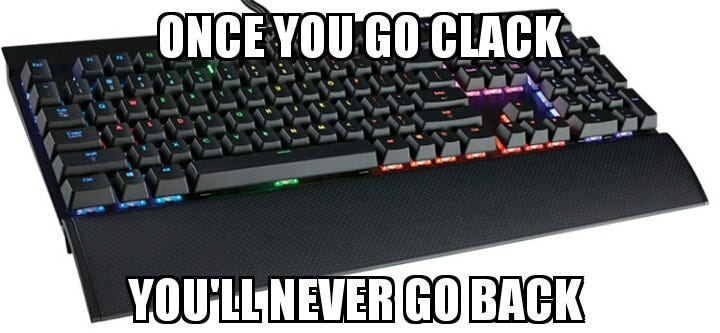
After using a compact keyboard for quite some time, I thought everything was settled when it came to keyboards. But I was wrong… I tried convincing a colleague to splurge on a mechanical keyboard and join the family. Little did I know that the persuasion backfired, and I ended up convincing myself instead. Let’s get straight to the point.
I’m someone who really appreciates minimalism. There’s a particular keyboard that I’m very fond of and almost bought once. However, the price wasn’t exactly friendly to my wallet, so I could only admire it from afar. That keyboard is called the ErgoDox EZ, and it’s not cheap—starting at $299. Oh my goodness! Let’s take a look at it.
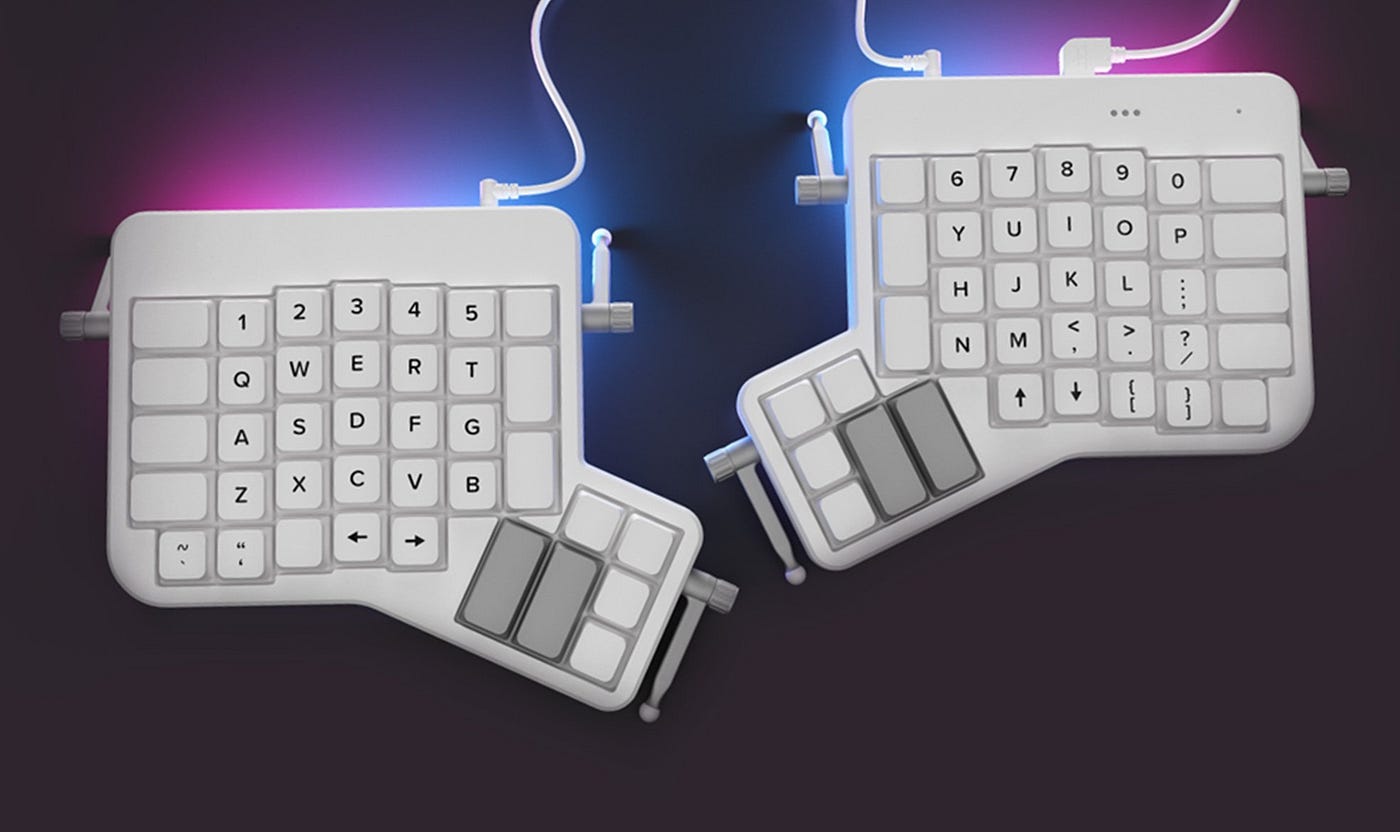
Back to the topic of persuasion. While I was browsing the ErgoDox EZ website to convince my colleague, I stumbled upon another keyboard from the same company. I didn’t even know they had released a new one. It stopped me in my tracks for a good 10 seconds. I looked down at my own keyboard, the Cooler Master MasterKeys Pro S RGB, and thought to myself, “This doesn’t look good.” And indeed, it didn’t.
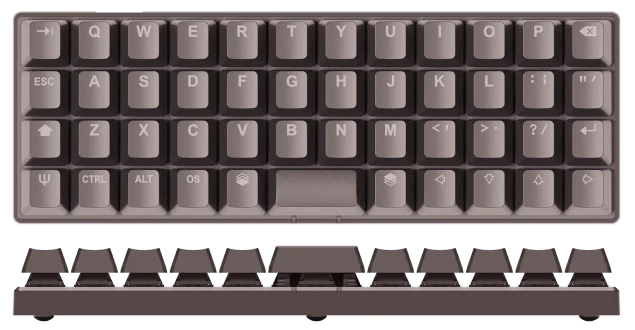
The Planck EZ is a keyboard with just 47 keys. It’s small enough to fit in a bag, making it easy to carry around. When I first saw it, I thought, “This is it!” Initially, I wondered if it might be too small, but when it arrived, it turned out to be just the right size—perfectly fitting in my hands. Friends who saw it were skeptical, saying, “Are you sure? It’s too small!”
I took about three days to adjust to it for typing in English and started using it for work right away. At first, I had some trouble with the Space Bar, Enter, Tab, ESC, and Arrow keys—sometimes missing the keys or pressing the wrong ones, especially with the Arrow keys. But, as they say, it’s all part of the adjustment process.
Once I got the hang of it, I realized that it was time to customize it. Luckily, -ZSA Technology Labs- provides the tools and applications needed, making customization and flashing the keyboard straightforward. Customizing the layout became an exciting task.
Customizing Layout
ORYX is a configuration tool for creating keyboard layouts, allowing us to assign and manage keys according to our preferences. You can even clone layouts shared by others and use them yourself. Personally, I use Colemak as my primary layout, so my customization looks like this:
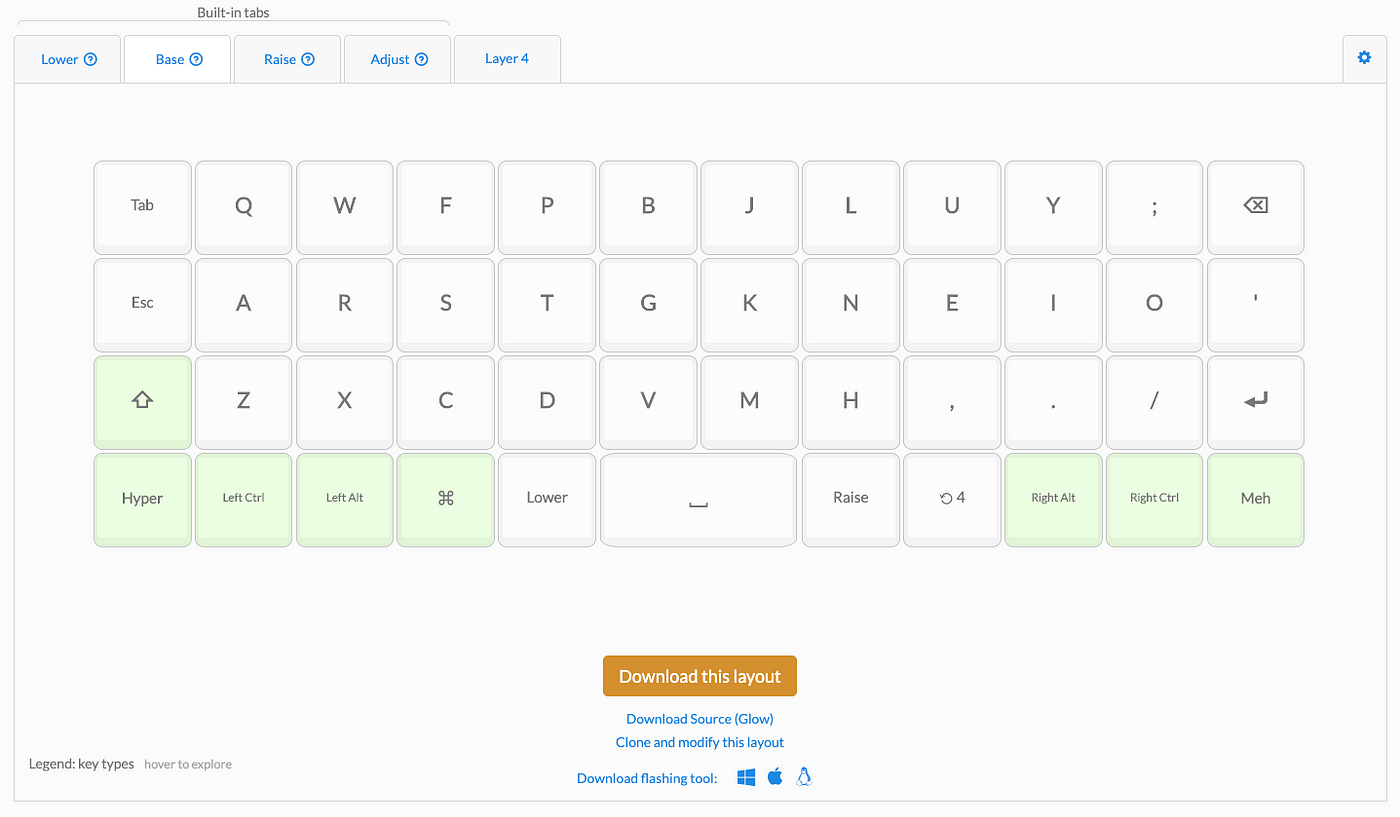
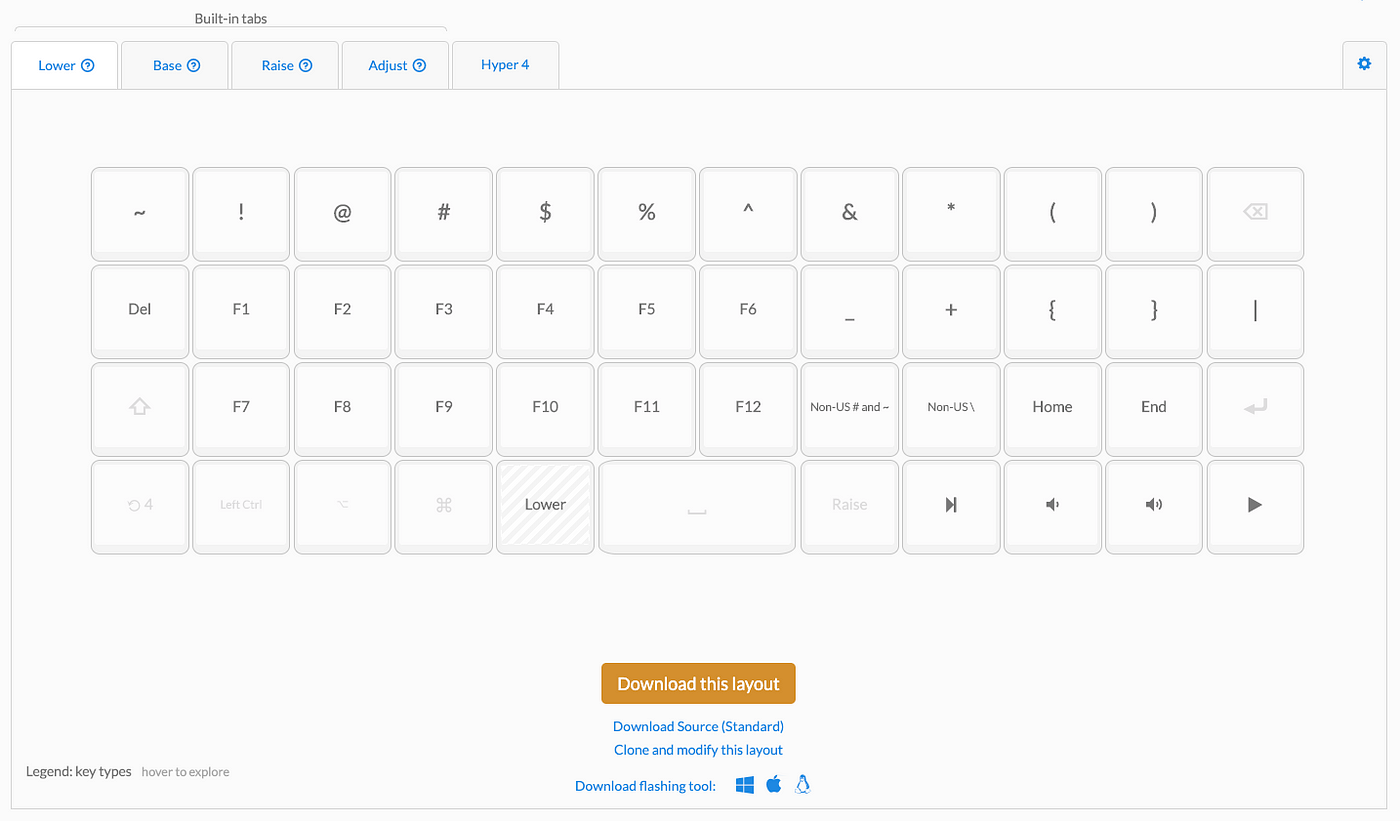
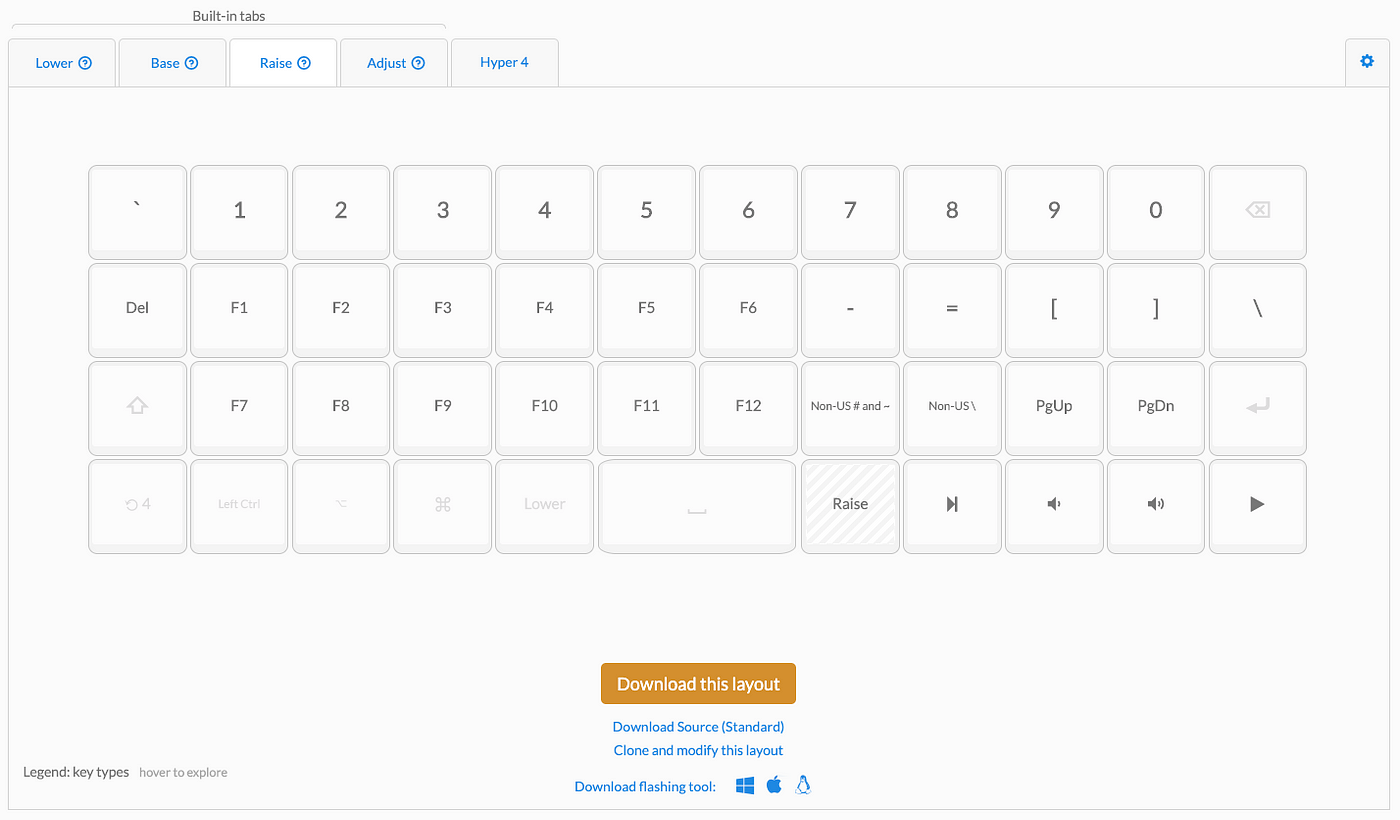
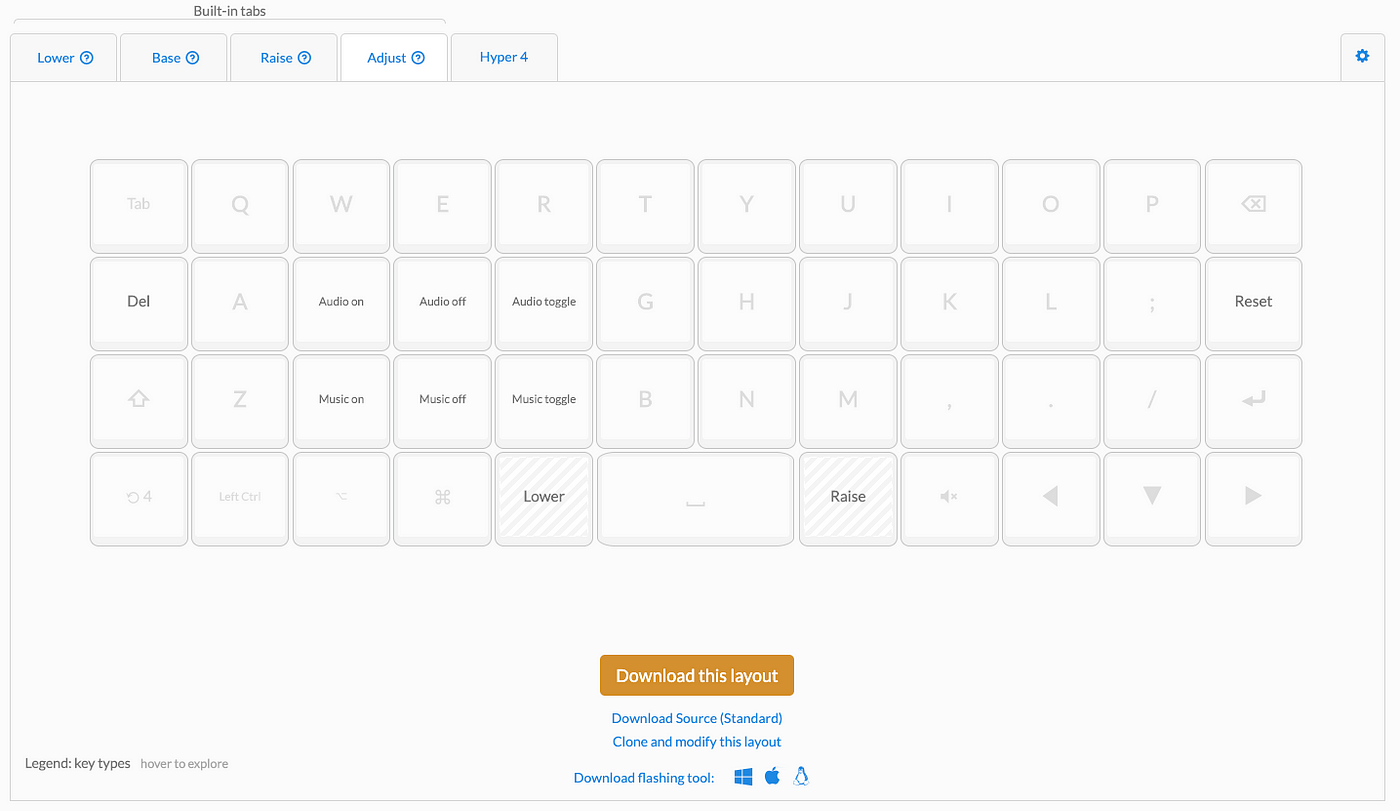
If you notice at the top, there are tabs that allow you to switch layouts at any time by pressing the Lower, Raise, Hyper, or other keys you’ve configured. Here’s an example of the layout I’m currently using:
Lower
Rise
Adjust (Lower + Raise)
Special Layout (Holding Hyper Key)
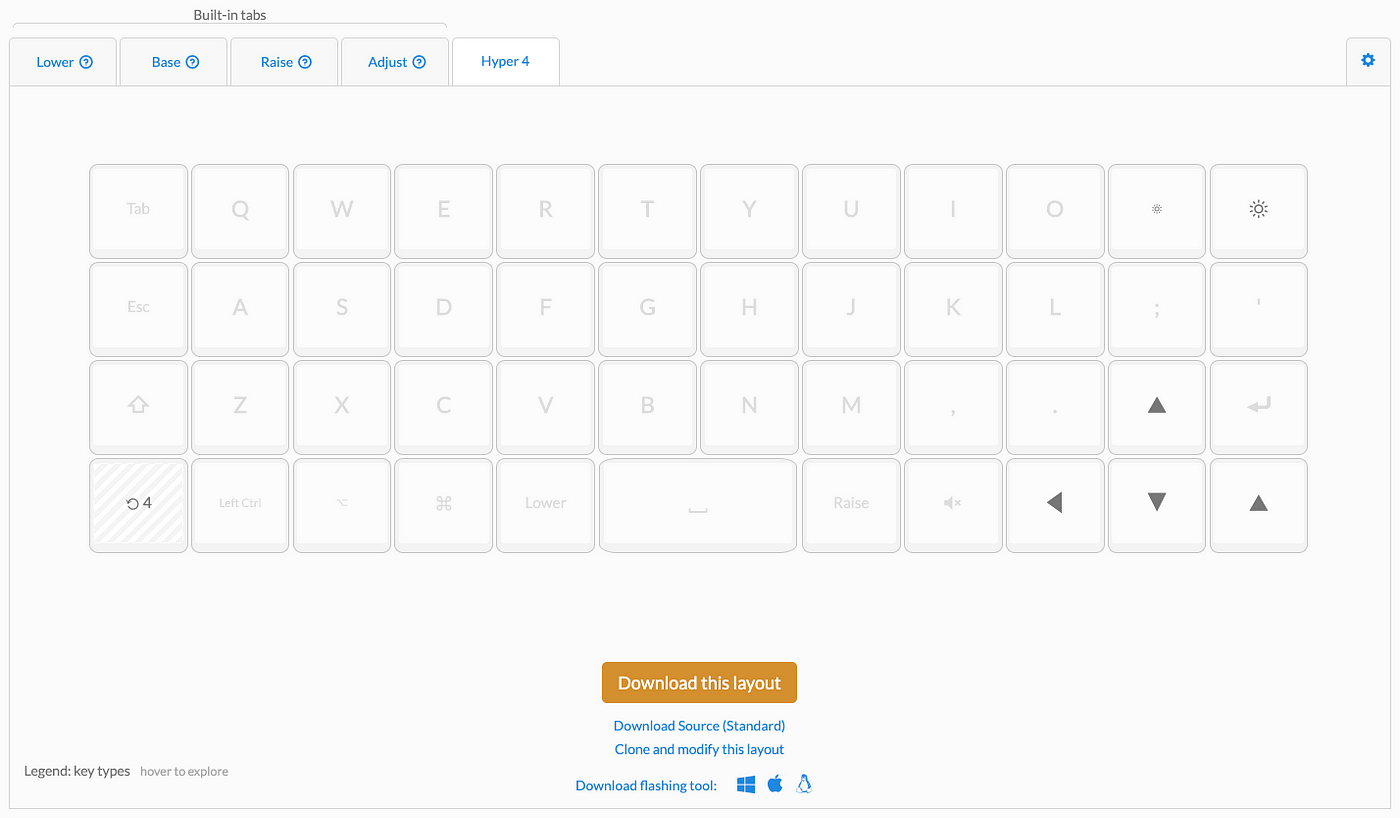
Once you’ve configured your layout, you can compile and download it to flash onto your keyboard. If anyone wants to try out my layout, you can check it out here: https://configure.ergodox-ez.com/planck-ez/layouts/9DbEK/latest/0.
If you’re not sure what the Lower, Raise, or Hyper keys are, take a look at the image below.
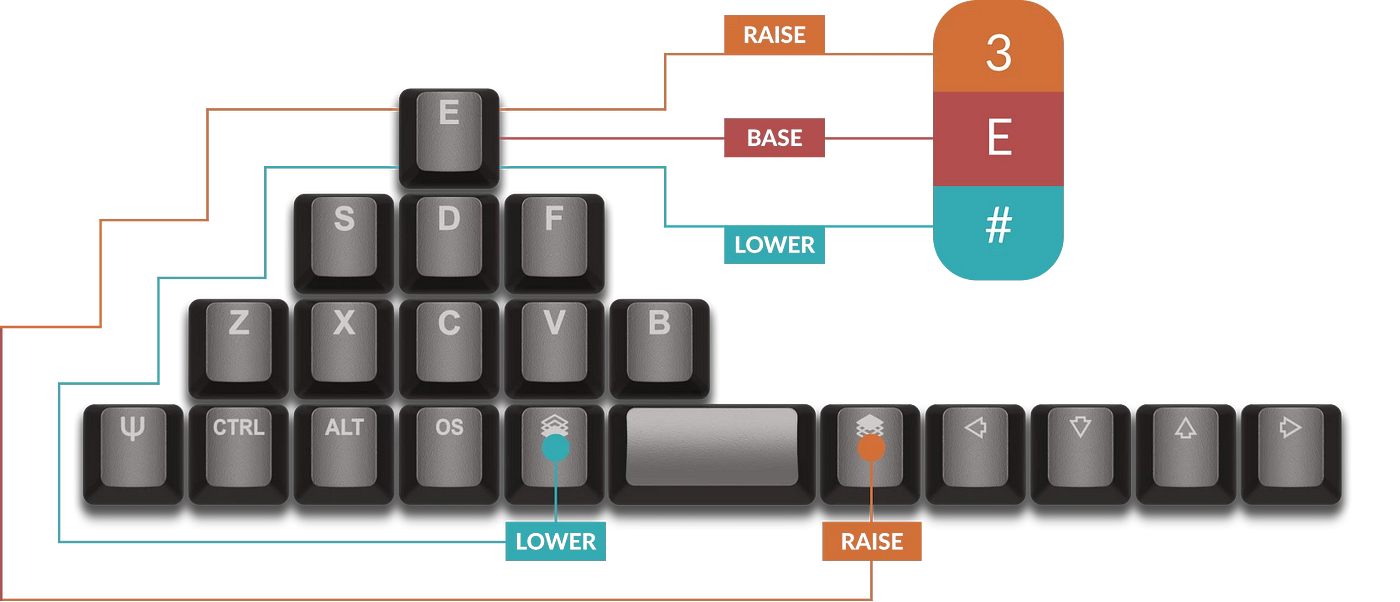
Or you can learn more by visiting this page.
Flashing
After customizing the layout to your liking, the next step is to flash it onto your keyboard. Ergodox provides a dedicated application for this purpose called Wally, which you can download directly.
The process is very straightforward: just open the application, select the layout file you compiled earlier, and follow the steps provided by the application. It’s not difficult at all.
Real-World Usage
Even though it’s a very compact keyboard, I find it to be excellent for my needs:
- You don’t have to lift your hands much when typing characters typically found on the upper row of a standard keyboard, such as numbers or symbols.
- Switching layouts is incredibly easy.
- Typing speed has increased, especially with the Colemak layout.
- Thai language support was initially a bit challenging, but after some use, it got better, and now I really like it.
- You can customize everything.
- Switches can be changed without voiding the warranty.
- There’s a mode that lets you use it as a mouse.
- There are plenty of other features I’ll try out and share with you later.